

How does Google find a website - and how can it go wrong?
You’ve just spent ages perfecting your shiny new web page. Now what? If your page doesn't get added to Google's…
Read This Post
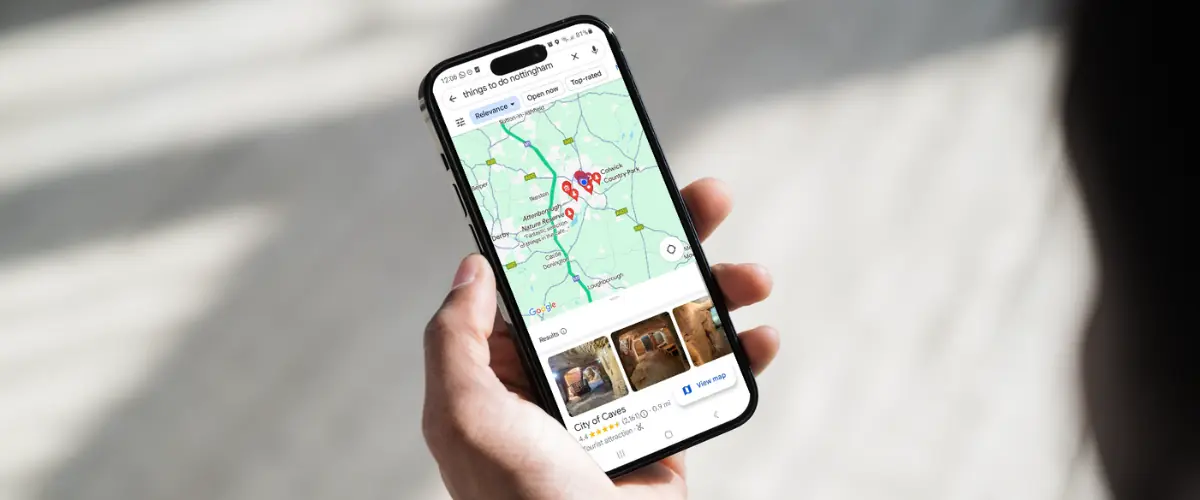
Imagine this: You’re craving a cappuccino and within seconds, Google Maps guides you to the perfect little coffee shop around the corner. That gets you thinking – how can you get your business showing up on the map too? Whether you run a coffee shop, a chain of shops or a B2B service, Google Maps can be a great way of getting found by local customers.
Those customers don’t even need to be using Google Maps itself. A map and the top three results also show in the main search results page when the search is likely to require a local service. The best bit? It’s really easy – and free – to get your business listed on Maps.
You’ll need to use a free tool called Google Business Profiles, which powers Google Maps results. You can use this to claim an existing listing, or create a new one. This Business Profile will then display key information when people look for your business or service. Features include direct messaging with customers, highlighting key products and posting updates.
Getting the most from these features can help you show up in more searches from people looking for your products or services. We’re going to take a step-by-step look at how to set up your profile well.
Many people don’t realise that Google results for a given keyword aren’t the same across the whole of the UK. Google customises results to try and make sure we always see something relevant to us. One of the ways it does this is by using an approximate location for the search, whether that’s on Maps or the main Google search.

This means that if you search for a service, e.g. ‘plumbers’, while you’re in Nottingham, you’ll see different results than if you made the same search from Cornwall. This happens even without putting in qualifiers like ‘Nottingham’ or ‘Penzance’.
So if location has any impact on your business, Google Maps should be part of your strategy. The main criteria is that you must have face-to-face contact with customers during your opening hours. This can include:
If you offer a mobile service and don’t have (or want) to put your registered address online, you can create a listing based on the area you work in. You won’t have an address pin on the map, but it’s still possible to show up for local searches with an optimised profile.

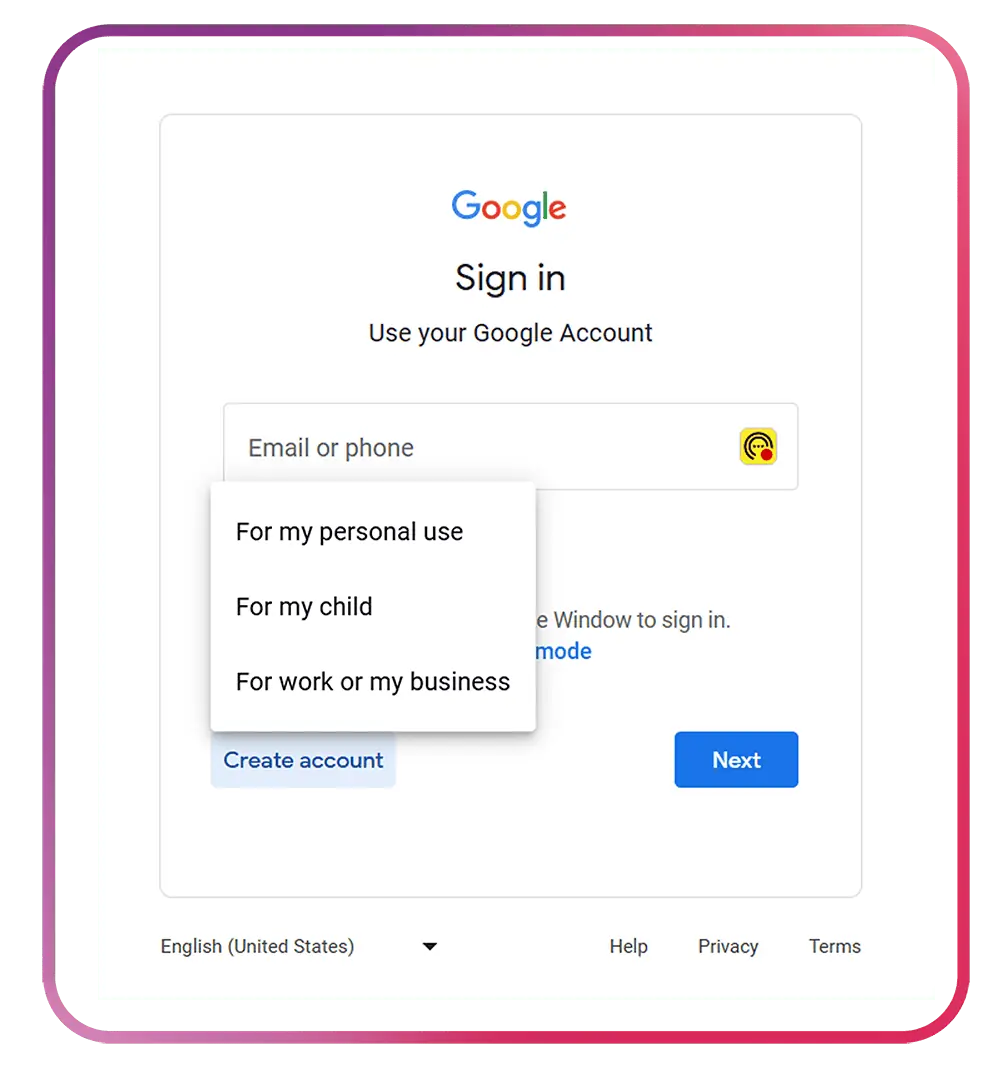
1. You’ll need a free Google account to be able to claim, create or manage a listing.
If you’ve not already got one, head to Google.com and click ‘sign in’ in the top right. Then on the sign in page, click ‘create account’ and ‘to manage my business’. You’ll be able to create a Google account by using an existing email address or setting up a free Gmail account.
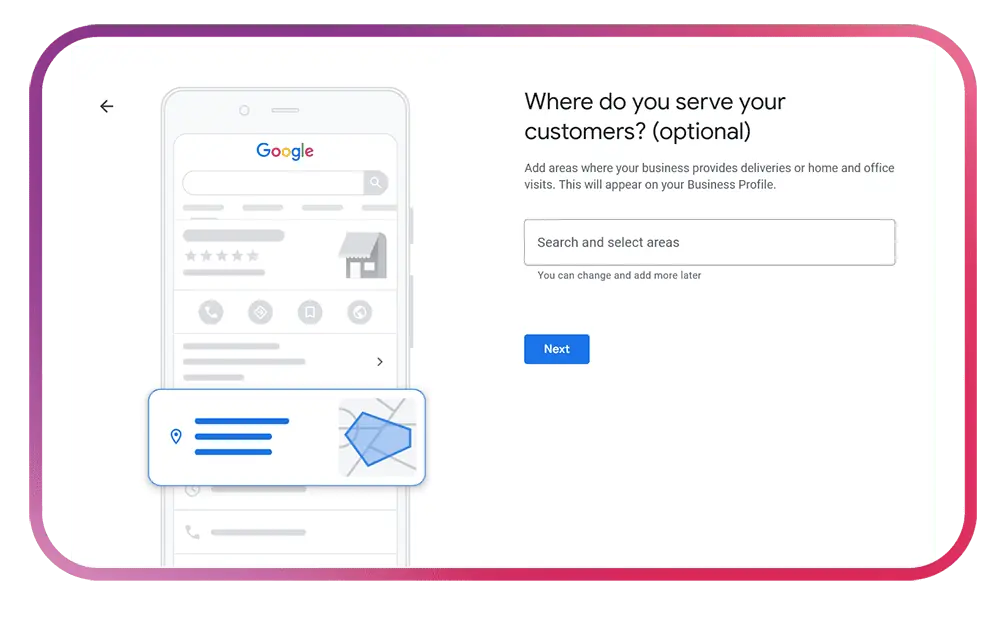
2. Find or set up your listing
For a UK business, go to https://www.google.com/intl/en_uk/business/ and click ‘manage now’. It’ll then ask for your business name to check if there’s already been a listing automatically created for your business (this is common if your address is already listed online elsewhere).
If there’s already an existing listing, you’ll need to verify your ownership before you can start managing it.
If you don’t see your business appear, click ‘add your business to Google’. You’ll be given a series of questions to fill in the basic information for the listing, such as your business name, category, address and phone number.
3. Get verified
The verification options available depend on your business type and category, and can include:
If you’ve requested the postcard verification method, it’s important to not update the business name, address or category until you’ve verified it. Making changes before verification will cancel the first code and trigger a new one being sent, meaning it takes you longer to verify the business.
Once your profile is set up and verified, you’ll be able to update the information and make use of additional features like accepting messages.
Once you’ve verified your listing, follow these 5 quick checks to make sure your customers find the correct information:
Combined with your address and phone number, the business name makes up part of your online ‘NAP’ profile (Name, Address, Phone number). A NAP profile helps to build trust with search engines that the information is accurate and the business is legitimate.
Consistency is key here – so your business name should appear the same everywhere. This includes on your website, business cards, any company vehicles and on online directories.
Don’t be tempted to try and stuff keywords after your business name on your Business Profile – this goes against Google’s policies.
Again, we’re looking for consistency. Your main contact details should be the same as they are elsewhere, particularly for your address and phone number. This includes spelling the address the same across your listings on different platforms wherever possible – e.g. use either ‘Street’ or ‘St.’ for everything rather than switching between them.
There are also options to add your website address and social media profiles to give customers more ways to get in touch.
Accurate opening hours reduce the risk of two things:
In a recent Google algorithm update, opening hours have started playing a big part in rankings. Businesses have seen rankings change massively depending on whether their business is open or closed. This is likely to be an attempt by Google to show relevant results. The problem is that many people look for businesses ahead of time – like a hotel or restaurant. So this may get reversed or tweaked in a later update, but it’s worth being aware of for now.
The description is your chance to tell customers what’s important about your business. This could be what makes your different, your history or your speciality area. This description will appear on your profile and is a quick way to get across what you do and who you can help. There’as a 750 character limit, so you’ll have to be concise!
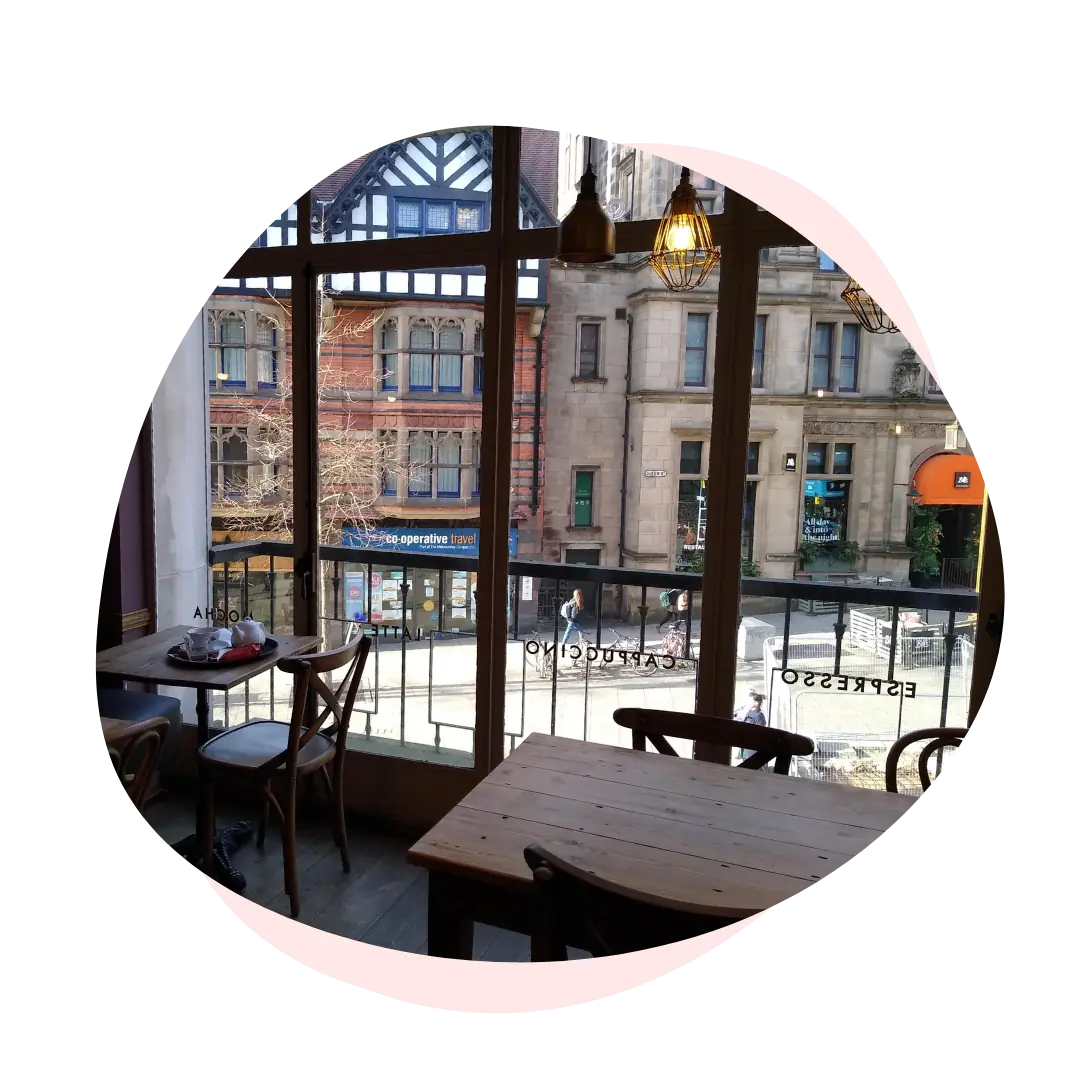
Whether photos show an enviable environment that will pull customers in – or the friendly faces behind the team – they can help to build engagement and trust in potential customers. Photos to consider including are:
Google’s guidance states that the photos should be taken at the business location and should be a realistic reflection of the business. This means that images with excessive filters, GIFS and stock photography may be removed.
There’s plenty of scope to go beyond the basics and get a bit more from your profile. Here are some of the features to consider:
Aren’t reviews a pretty basic feature? Well, yes – but as they also need a long-term strategy, I’m including them here!
Anyone can leave a review about their experience with your business – good, bad or indifferent. Building up the number of detailed, positive reviews is a key part of ranking better in Maps search results.
To make the most of this, you need a way of continually generating reviews. Some ways you can do this are:
Reviews also need ongoing management. You should aim to reply to reviews where you can, both when they’re positive – and even more importantly, when they’re not!
The messaging feature creates an additional avenue of communication for quick questions. Once it’s turned on, customers will see the option to message you on your profile.
You can get notified about messages via email or the Google Maps app on your phone (make sure you’re signed in with the same account!)
You’ll need to respond to messages promptly in order to keep the feature active.
If you run an online booking calendar for appointments or classes etc, you can include a link to this directly on your profile. This helps reduce friction in the booking journey, which can increase the percentage of people who complete the booking.
There’s an option to list services under your primary business category, as well as add additional categories and services where relevant. For service-based businesses, filling out these sections in detail can help your business to show up for more relevant results. They effectively add to the keywords of your Business Profile, and give you the opportunity to show up if someone is searching for a specific service you provide.
You can also list some key products with a price, photo and short description – along with a link to the product page on your website. The previews of your products show up on your profile, and can be an eye-catching way to showcase key products and entice customers to visit you in store or online.
As well as sending a direct message, visitors to your profile can ask you a question via the Q&A feature. If you regularly get the same questions from potential customers, it may be worth filling out a few of these internally. You’ll see an option to ask a question from the Business Profile overview. The Q&A not only provides additional information for potential customers – it also gives Google a bit more context about your business.
You can post events, offers and update posts which appear as part of your profile. A normal update will stay visible for 7 days, while an event update will last until the event. This can be a helpful way of putting timely information about your business in front of people, or promoting certain elements of the business, such as a service or upcoming campaign.
You’ll be able to track the success of your profile on the ‘performance’ tab. This shows how many times you’ve shown up in search, as well as the number of messages, calls, bookings and website visits were made from your profile.
But getting your Google Maps listing up and running is just the beginning. Ongoing management and a solid review strategy can help you climb up the rankings. But if locality is really important to your business, you can build on this further with Local SEO.
A Google Business Profile is a key part of most Local SEO strategies, but they also use other tactics such as:
We’ll be diving into some of these in more detail in future blogs – so make sure you’ve subscribed to get them sent directly to you!
Looking to get found by more local customers? We work with small marketing teams to help them get better results from search. If you’d like to find out about having us work as part of your team, get in touch via 📨 hello@heyyou.digital or 📞01159902779 to have a chat.
Sign up to our newsletter for SEO knowledge, updates and ideas every Friday.
Here’s some more SEO tips and advice to keep you going until the next installment…


